SETT usage guide
How to install, sign in, track your work time, plan and allocate work with tasks and reminders, and — for org admins — manage schedules, leave, business trips, overtime, work day swaps, and workflow templates.
Getting started
SETT is a desktop app that tracks your work hours, idle time, and which applications you use. You need your organization identifier and login credentials from your employer before you begin.
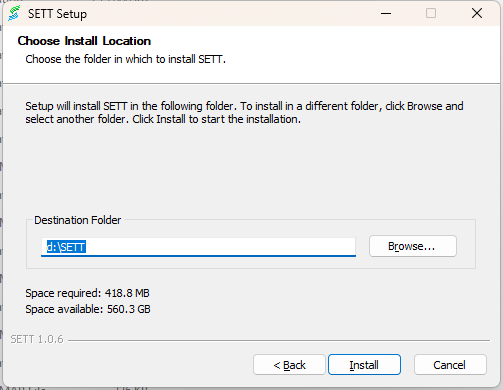
1. Install SETT
2. Sign in
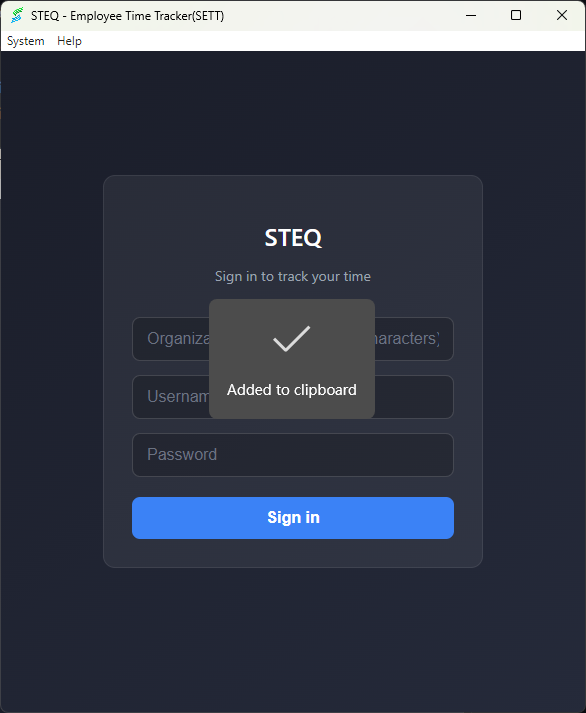
When you open SETT for the first time, you’ll see the sign-in screen. Enter the details provided by your organization:
- Organization identifier – Usually a short name (e.g. your company or team code). It must be 3–100 characters.
- Username – Your SETT username.
- Password – Your SETT password.
Click Sign in. If your organization requires it, you may be asked to accept terms and conditions or to change your password on first login.
3. Track your time
After signing in, you’ll see the main dashboard. Time tracking is simple:
4. Understanding the dashboard
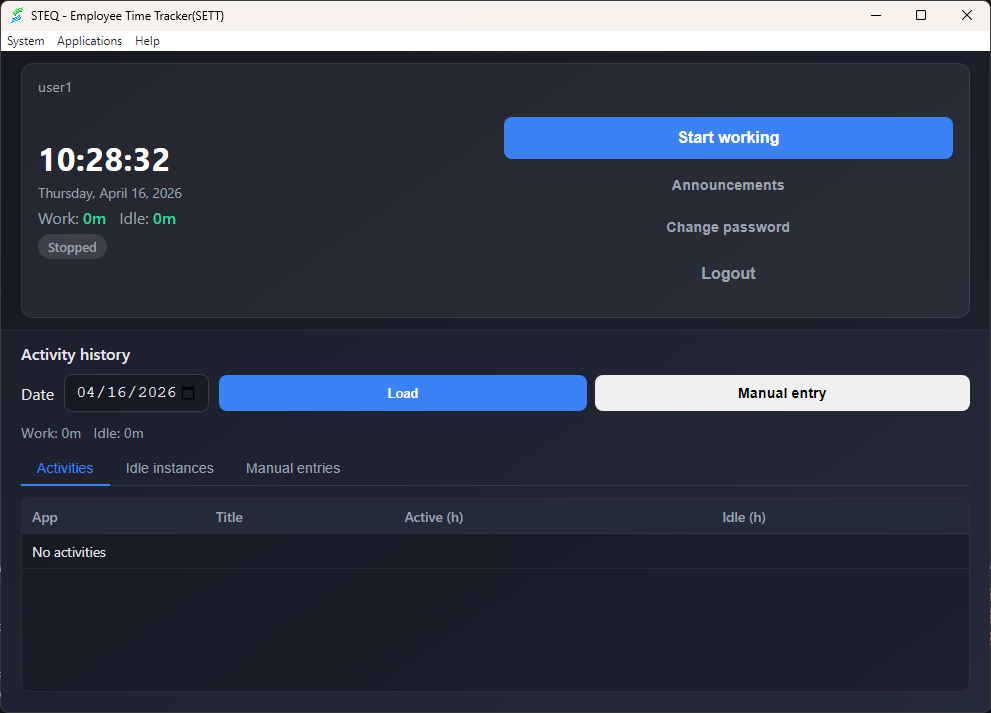
The top of the screen shows:
- Current time – The clock.
- Work – Total time counted as “working” today (active at the computer).
- Idle – Total time counted as “idle” today (no input for a while).
- Status – “Working”, “Stopped”, or “Idle”. “Idle” means you haven’t used the mouse or keyboard for a period; you may get a prompt to give a reason.
Use Change password to update your password, and Logout to sign out (remember to stop tracking first if you’re done for the day).
5. Idle time, reasons, and AFK work
If you step away from your computer, SETT will detect that you’re idle. Depending on your organization’s settings:
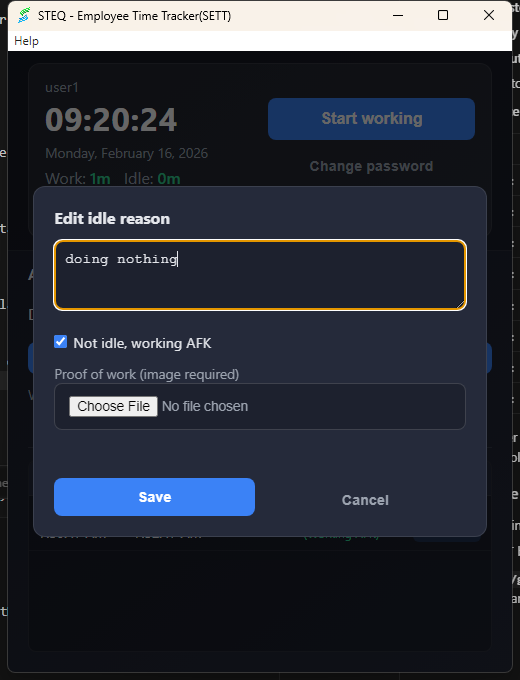
- You may see a small window asking for a reason for the idle period (e.g. “Meeting”, “Break”, “Lunch”). You can type a short description and submit.
- AFK work (labeled in the app as Not idle, working AFK): If you were actually working without using the mouse or keyboard—reading documents, in an in-person meeting, or similar—check this option and upload proof (an image). That period is recorded as work time away from the desk, not as idle/break time, in your history and reports.
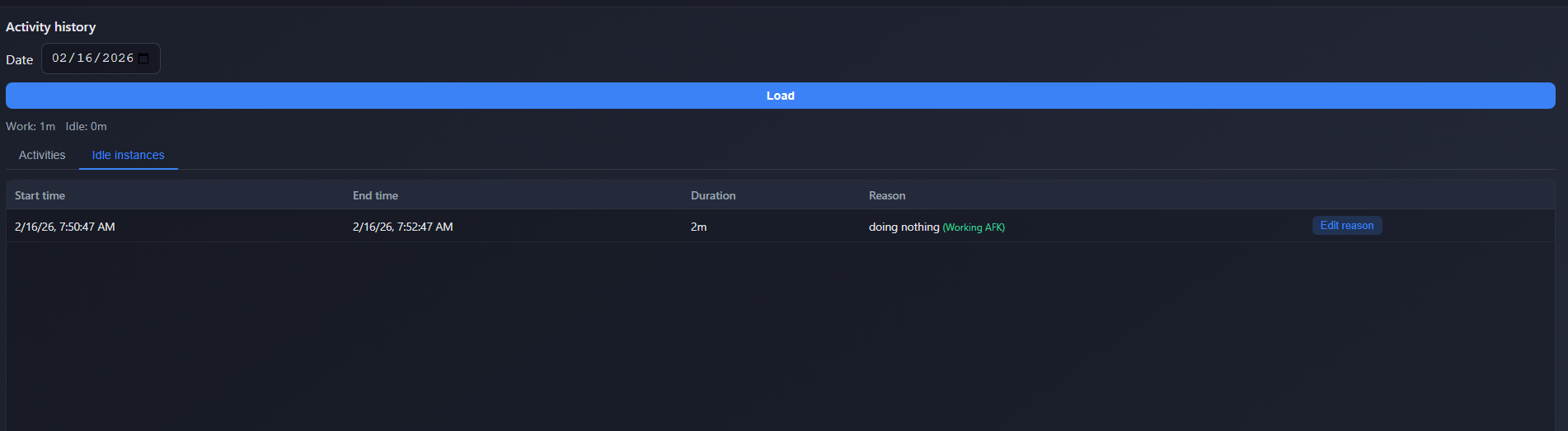
You can also update idle reasons and AFK work later from the Activity history section (Idle instances tab).
6. Activity history
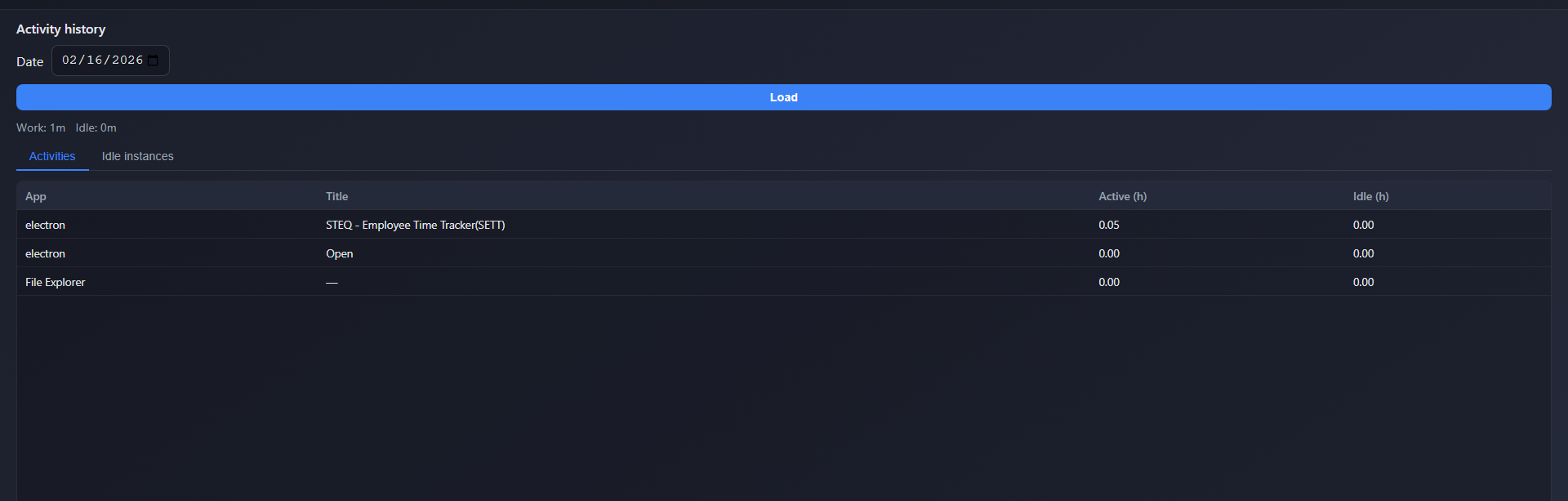
Below the dashboard you’ll find Activity history. Use it to review your past activity:
- Choose a date and click Load to see that day’s data.
- Activities tab – Lists apps and window titles, with how long each was active and how long you were idle in that app.
- Idle instances tab – Lists each idle period with start time, end time, duration, and reason. You can click to edit the reason or mark as AFK work (Not idle, working AFK; proof required) if you forgot to do it when prompted.
- Manual entries tab – Lists time you added yourself (see the next section).
7. Manual time entries (custom work periods)
Sometimes work isn’t visible as app usage—for example time on another device, travel, or tasks without the PC. You can log those periods as manual entries so your effort is documented.
8. Tasks & Reminders
SETT includes a daily task list so you (and your admins) can plan, track and document the work you’re doing. Open Tasks & Reminders from the app to see your tasks for the selected date.
Tasks view and Calendar view
You can switch between two views at the top:
- Tasks view – Daily list of your tasks for the chosen date, with previous/next/today controls. A task that spans several days appears on each day between its target start and end dates.
- Calendar view – Monthly grid showing how many tasks you have per day, grouped by status (Pending, In progress, Completed, Delayed, Cancelled). Click a day to load it in Tasks view.
What a task contains
- Description – Short text describing what the task is about (this is the task’s main label).
- Target start date and target end date – When the task is planned to begin and finish.
- Estimated effort and remaining effort (in hours) – Plan vs. what’s still left to do.
- Status – Pending, In progress, Completed, Cancelled, or Delayed.
- Priority – Top priority, High, Medium, Low, or Optional.
- Urgent flag – Mark a task as Urgent when it needs special attention; urgent tasks are highlighted in lists.
- Health flag – SETT shows small icons such as Over budget, Delayed, or Completed early based on dates and effort.
Working with a task row
Each task row exposes quick actions:
- Details – Open the full task panel (description, attachments, conversation, history).
- Edit – Change description, dates, effort, priority, or urgent flag.
- Start / Complete / Reopen / Cancel – Move the task through its statuses.
- Transfer – Request that another teammate take it over (see section 12).
Creating a task
9. Task details: attachments, conversation, history
Click Details on any task to open its detail panel. It has tabs for everything tied to that task.
Attachments
Use the Attachments tab to add files or images that belong to this task.
- Click + Attach file to upload. Up to 25 MB per file; any file type is accepted.
- Image attachments offer View (opens the image viewer); other files use Open/download.
- You can delete attachments you uploaded yourself. Admins can delete any attachment on a task they manage.
Conversation
The Conversation tab is a shared comment thread between you and your admin/manager on that task.
- Type a note in the message box (placeholder: “Write a note or feedback...”) and click Send.
- Each message shows the author’s name, their role (User or Admin), and timestamp.
- Unread comments are tracked per task. Opening Details or the Conversation tab marks them as read. Your own messages never count as unread to you.
History
The History tab is an append-only log of everything that has happened to the task — useful to see who changed what and when.
Tracked events include: Task created, Status changed, Description updated, Start date changed, End date changed, Estimated effort changed, Remaining effort changed, Priority changed, Urgent flag changed, Assigned user changed, Transfer requested/approved/rejected/cancelled, Attachment added/removed, and Comment posted. Each row shows the actor, the timestamp, and where applicable an old → new change summary.
10. Subtasks and dependencies
Subtasks
A task can have subtasks — smaller pieces of work with their own dates, effort, status, and history. In the list they appear under their parent and are tagged Subtask.
- The parent’s progress is shown as completed / total subtasks.
- The parent’s status rolls up automatically from its children: any in‑progress child makes the parent In progress; any delayed child makes it Delayed; all completed makes it Completed; and so on.
- You can’t complete a parent until all its subtasks are completed or cancelled.
- If a parent has direct effort logged against it, you must instead complete its subtasks (it can’t be completed directly).
- Subtasks are created and managed by admins through Workflow templates (see section 14) and through the parent task’s detail panel where available.
Dependencies
A task can depend on one or more other tasks. The list shows incoming/outgoing dependency markers next to dependent rows, and a “Blocked by” summary on the task itself.
- A task cannot be marked Completed until all the tasks it depends on are completed — SETT will tell you which ones are still blocking.
- A task cannot depend on itself, and SETT prevents you from creating dependency cycles.
- Dependencies are most often set up by admins via Workflow templates, which publish whole groups of tasks with the right dependency links already in place.
11. Effort allocation
At the end of the day, Allocate effort tells SETT which of your tasks you actually spent your tracked work time on.
12. Task transfer
If a task should be done by someone else, you can ask to transfer it. The transfer needs admin approval before the assignee changes.
- You can only transfer your own top‑level tasks, and only when they are not Completed or Cancelled.
- You can’t transfer a single subtask — subtasks move with their parent when the parent is transferred.
- An approval reassigns the parent task and all of its subtasks to the new owner in one step.
13. Reminders
Reminders give you a desktop notification at a chosen time. They can stand alone (a generic note) or link to a specific task.
14. Workflow templates (org admin)
Workflow templates let admins build a reusable bundle of tasks once and publish it to employees as ready-to-work task hierarchies.
- In the admin panel open Workflow Templates and create a new template.
- Add Tasks and Subtasks, set default estimated effort per item, and configure Dependencies between items in the template.
- Preview the computed dates for a chosen launch date before publishing, and save the launch as a draft if you want to come back to it.
- Click Publish to create the real tasks for one or more assigned employees. SETT fills in computed start/end dates, estimated/remaining effort, parent‑child links, and cross-user dependency links automatically.
15. Tasks & transfers (org admin)
Admins manage tasks for the whole organization from the admin panel.
Tasks page
- Open Tasks, choose an Employee and Date, then click Load tasks. Toggle between List and Calendar tabs as needed.
- Filters include Delayed and Urgent to quickly find at-risk work.
- Use + Task to create a task for the selected employee; row actions Details and Edit let you inspect or change it.
- From Details admins can manage attachments, post in the conversation, and review the full history — the same tabs employees see.
Task transfer requests
Open Task transfer requests in the admin panel to review pending requests from employees. For each request you can Approve (reassigning the parent task and all subtasks to the chosen teammate) or Reject, with an optional note. The decision is recorded in the task’s history.
Reminders for employees
The admin Reminders page lets you create, edit, and delete reminders on behalf of any employee, optionally linked to a task. Fields are Description, Remind at, and Link to task (optional).
16. Announcements
Your organization admins can publish announcements directly to SETT so everyone sees important updates in one place.
- Announcements support rich content (formatted text, links, and uploaded images/video) so instructions are easier to follow.
- SETT checks for newly published announcements and keeps an unread count so you can quickly see if anything is new.
- Older announcements remain available in the app feed, ordered by publish time.
17. Work schedules (org admin)
In the admin panel, Work schedules lets you create named schedule templates and assign them to employees.
- Define expected attendance per weekday (working vs non-working days).
- Set schedule rules such as expected work/effort hours and allowed timing windows used by attendance reporting.
- Set whether the schedule is Eligible for OT pay. This controls whether assigned employees can submit overtime requests.
18. Overtime requests
Employees assigned to a schedule marked Eligible for OT pay can submit overtime requests from the app.
- Create a request with work date, maximum hours, reason, and an optional supporting attachment (image or PDF).
- Pending requests can be edited or cancelled by the employee while the date has not passed.
- Org admins review requests in Overtime management and can approve, reject, or update approved maximum hours.
19. Business trip requests
Employees can submit business trip applications for travel done in advance or after the trip period, subject to manager/admin approval.
- Each request includes start date, end date, AM/PM coverage (half-day support, like leave), and a required reason.
- Pending requests can be edited or cancelled by the employee before review.
- Org admins review requests in Business trip management and can approve, reject, or cancel approved requests.
- In attendance reporting, approved business trip periods are counted as present on working days (excluding non-working days and holidays).
20. Work day swap requests
Work day swap lets employees exchange one scheduled working day with one rest day or holiday.
- Each request includes the two dates (working day to rest and rest/holiday day to work), reason, and optional attachment.
- Requests must use valid date pairs based on the employee’s current schedule and holiday calendar.
- After admin approval, the app applies calendar overrides so attendance and day status reflect the approved swap.
21. Urgent voice messages
Your manager or admin can send you urgent voice messages (short voice recordings) when they need to reach you quickly.
When you’re tracking (working)
Whenever you have clicked Start working, any new voice message sent to you will appear as a popup immediately so you can play it—whether you’re currently active at the computer or idle at that moment. Listen and close the popup when done.
Voice inbox
You can also open Voice inbox from the app menu at any time to see all voice messages sent to you. Each message shows who sent it and when. Click Play to listen. Messages you’ve already played stay in the list so you can replay them if needed.
22. System tray
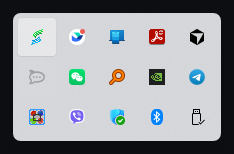
You can minimize SETT to the system tray (the area near the clock in the taskbar). The app keeps tracking in the background. To open the window again, double-click the SETT icon in the tray. This way you can keep tracking without keeping the window open all day.
23. Logging out and closing
When you’re done for the day:
- Click Stop working so your time is recorded correctly.
- Click Logout to sign out. You can then close the window; if you only minimize to the tray, you’ll stay signed in and tracking will continue if you had left it running.
How to exit
To fully quit SETT, use either of these:
- Log out and close – Click Logout in the app, then close the window (click the × or use Alt+F4).
- Exit from the system tray – Right-click the SETT icon in the system tray (near the clock) and choose Exit. This closes the app without opening the window.
Tips
- Start at the beginning of your workday – Click “Start working” when you sit down so your hours are accurate.
- Stop when you leave – Click “Stop working” when you take a long break or finish for the day.
- Respond to idle prompts – If your organization uses idle reasons, filling them in helps keep reports clear.
- Use AFK work when needed – If you were reading or in a meeting without using the computer, mark the idle period as Not idle, working AFK so it counts as work; proof is required.
- Manual entries for off-PC work – Use Manual entry after you Stop working to log custom periods with description and proof; they appear under the Manual entries tab.
- Plan with tasks – Create tasks in Tasks & Reminders for the day, set priority/dates/estimated effort, and use the Calendar view to scan the month for delayed or busy days.
- Allocate effort daily – At day’s end, open Allocate effort and split your tracked hours across leaf tasks in 0.25‑hour steps. Finalize the date once you’re happy to lock it.
- Use subtasks for big work – Break larger tasks into subtasks so progress and status roll up automatically and you can complete pieces independently. Effort is logged on the subtasks, not the parent.
- Request transfers early – If a task should move to a teammate, use Transfer with a clear reason so admins can approve quickly; subtasks move with the parent.
- Keep the conversation on the task – Discuss work in the task’s Conversation tab and attach proof/files there so everything (and the audit history) lives in one place.
- Set reminders – Use + Reminder for deadlines or follow-ups; link it to a task so it’s easy to open when the toast appears. Snooze for 1 hour or 1 day if needed.
- Review announcements regularly – Check the announcements feed for policy changes, schedule updates, and other important organization notices.
- Use schedule-aware requests – Overtime is available only for schedules marked OT-eligible, and work day swaps must pair a scheduled workday with a rest/holiday date.
- Use business trip AM/PM correctly – For half-day travel, choose AM or PM accurately so attendance reflects presumed schedule time and effort.
- Check activity history – Use the history to see how your time was split and fix any missing or wrong idle reasons.
- Check Voice inbox – If your admin sends urgent voice messages, you’ll see a popup to play immediately when you’re tracking (Start working). Otherwise open Voice inbox from the menu to catch up later.